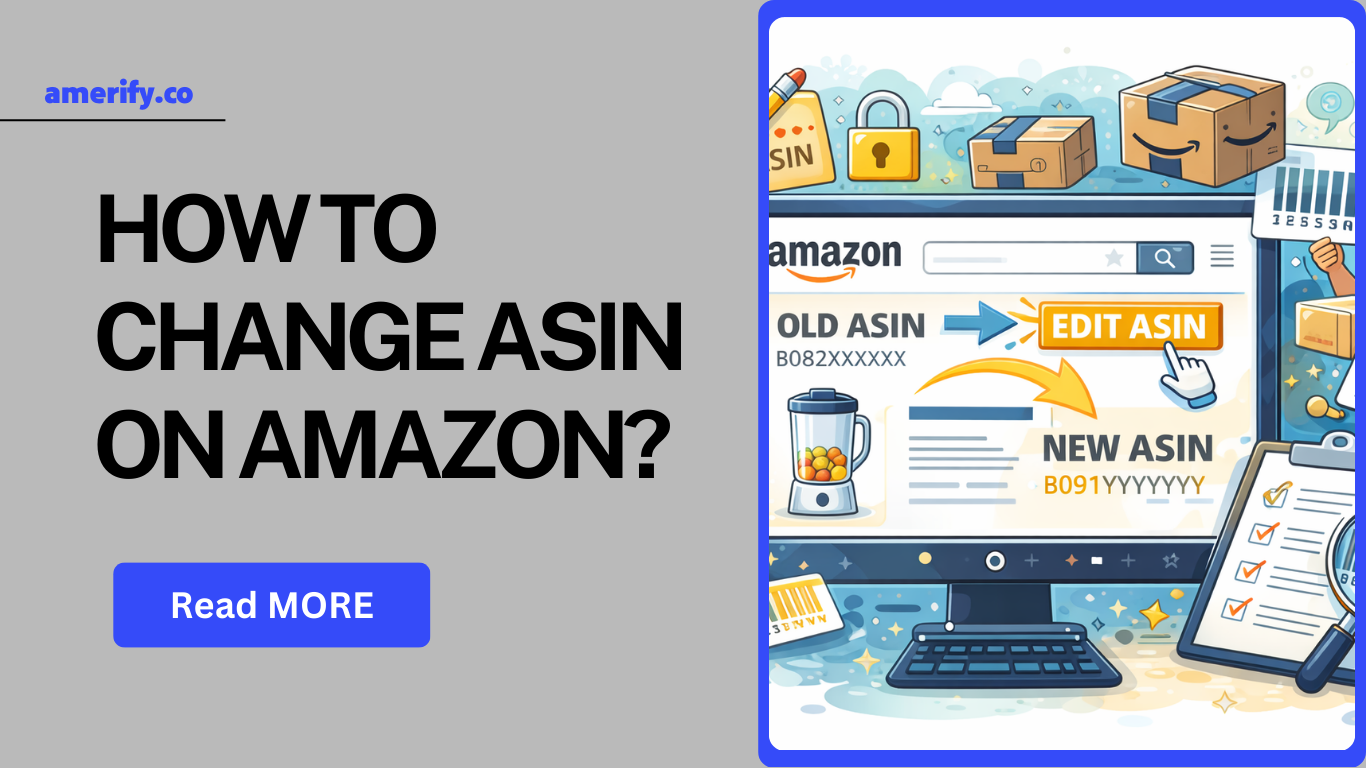
Can You Change an ASIN on Amazon?
No, you cannot edit or change an existing ASIN on Amazon.
An ASIN (Amazon Standard Identification Number) is permanently assigned to a product in Amazon’s catalog. Once created, it cannot be modified or replaced by sellers.
If you believe you need to “change” an ASIN, what you actually need to do depends on the situation:
- You listed your product under the wrong ASIN.
- You accidentally created a duplicate ASIN.
- Your product is attached to the wrong parent variation.
- Your UPC or product details were submitted incorrectly.
Below is the correct way to fix each scenario inside Amazon Seller Central (US).
Scenario 1: You Listed Your Product Under the Wrong ASIN
If your product is attached to the wrong ASIN, the only way to correct it is by deleting your current offer and relisting it under the correct ASIN.
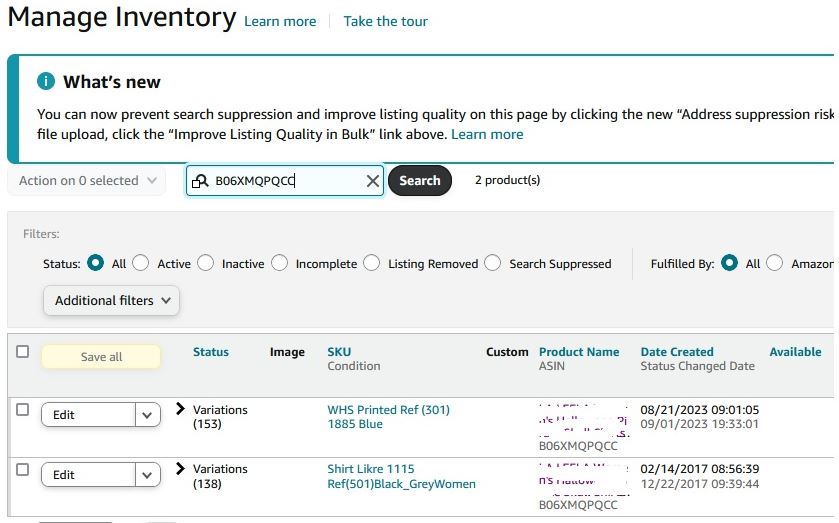
Step 1: Navigate to Manage Inventory in Seller Central
- Log in to Amazon Seller Central (US).
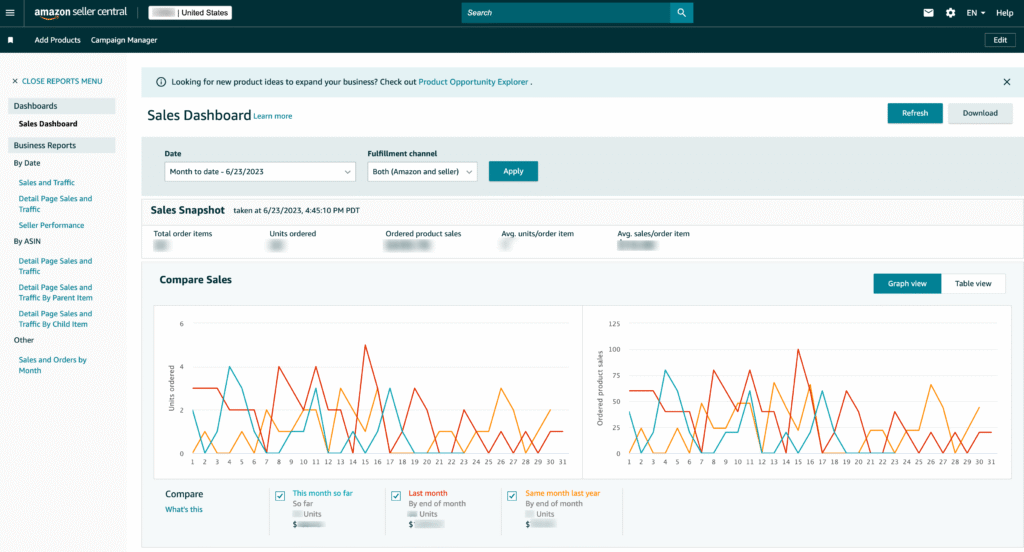
2. Click Inventory in the top menu.
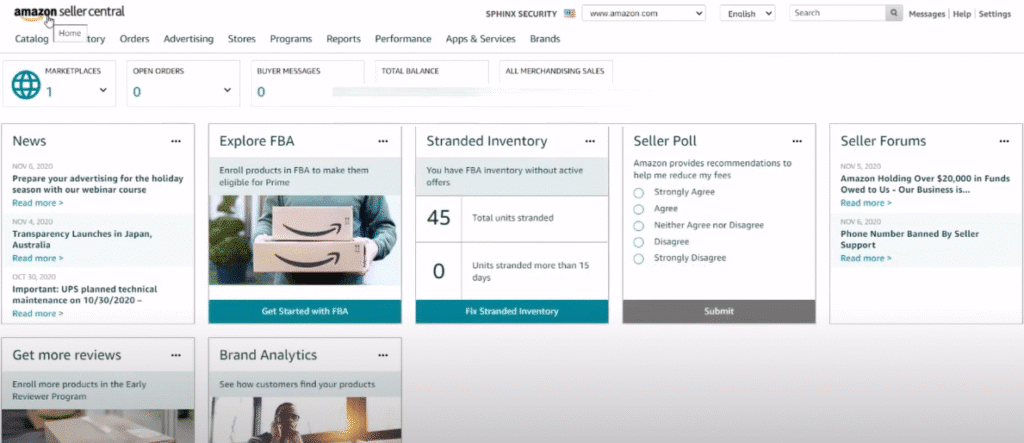
3. Select Manage Inventory.
4. Search for the product listing you need to correct.
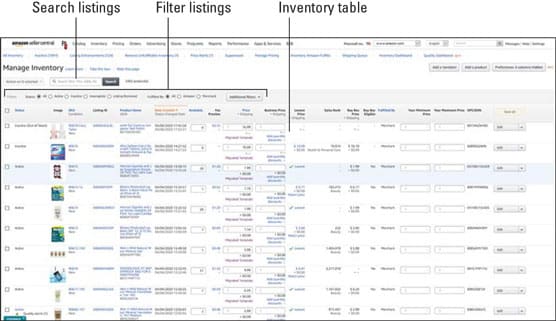
This page allows you to manage, edit, or remove your offers.
Step 2: Delete the Incorrect Offer
- Click the dropdown next to the listing.
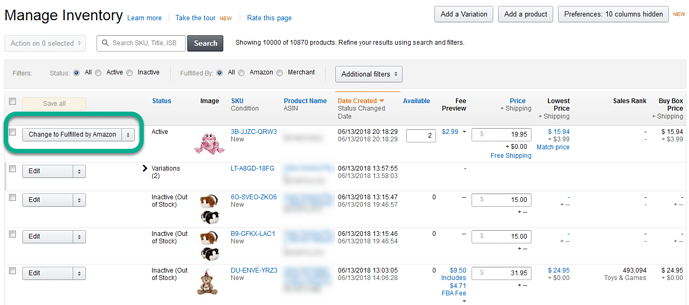
2. Select Delete product and listing.
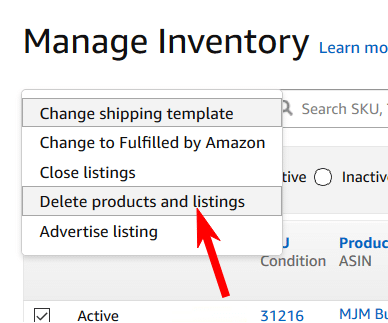
3. Confirm deletion.
Deleting the listing removes your offer from that ASIN. It does not delete the ASIN from Amazon’s catalog.
If you use FBA, make sure your inventory is properly managed before deleting the listing to avoid stranded inventory.
Step 3: Relist the Product Under the Correct ASIN
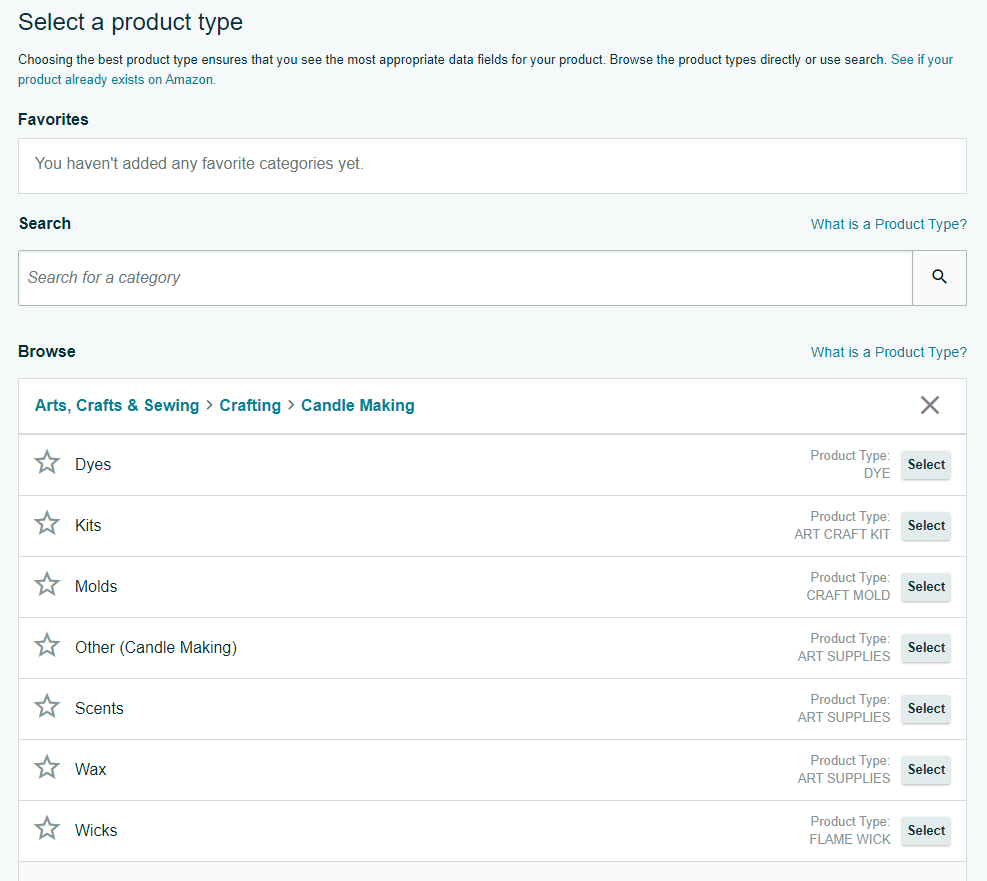
- Go to Inventory → Add a Product.
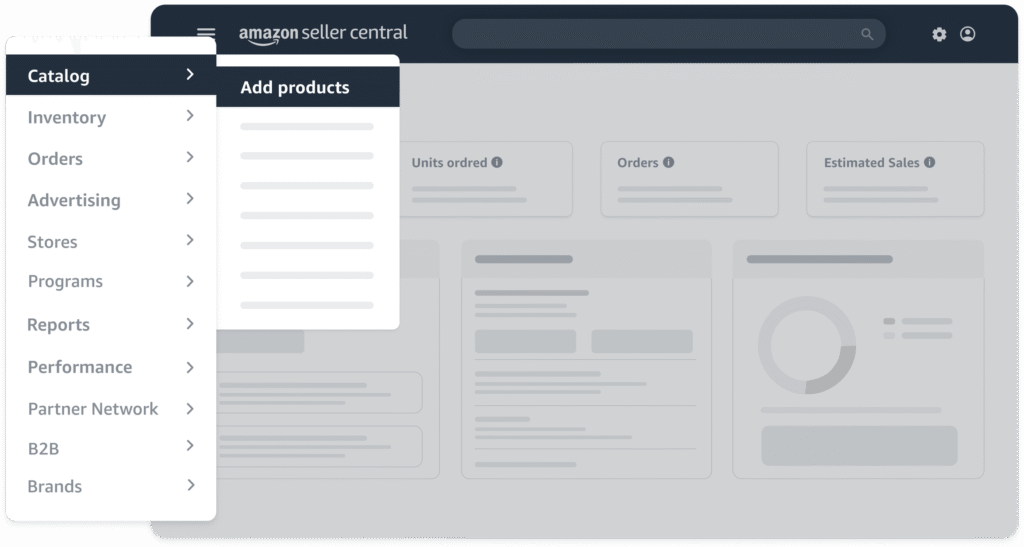
2. Enter the correct ASIN in the search bar.
3. If the ASIN exists, click Sell this product.
4. If it does not exist, create a new listing using the correct UPC/GTIN.
5. Double-check your product identifiers before submitting to prevent duplicate ASIN creation.
Scenario 2: You Created a Duplicate ASIN
If two ASINs represent the same product, Amazon requires a formal catalog merge request. Sellers cannot merge ASINs manually.
Follow these steps inside Amazon Seller Central (US) to submit the request properly.
Step 1: Go to Help → Get Support in Seller Central
- Log in to Amazon Seller Central (US).
- Click the Help icon in the top-right corner.
- Select Get Support to open the case submission dashboard.
This section allows you to contact Amazon’s catalog and support teams directly.
Step 2: Select “Products and Inventory”
- Choose Products and Inventory from the support categories.
- This ensures your case is routed to the catalog team rather than general seller support.
Selecting the correct category speeds up resolution time.
Step 3: Choose “Fix a Product Page”
1. Click Fix a Product Page.
2. Select the option indicating duplicate or incorrect product information.
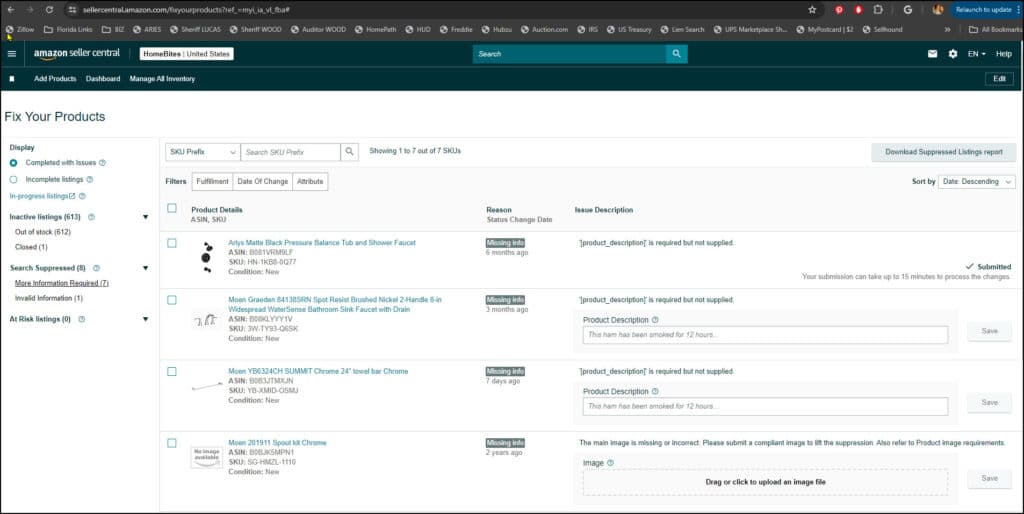
3. Enter the ASIN that requires correction.
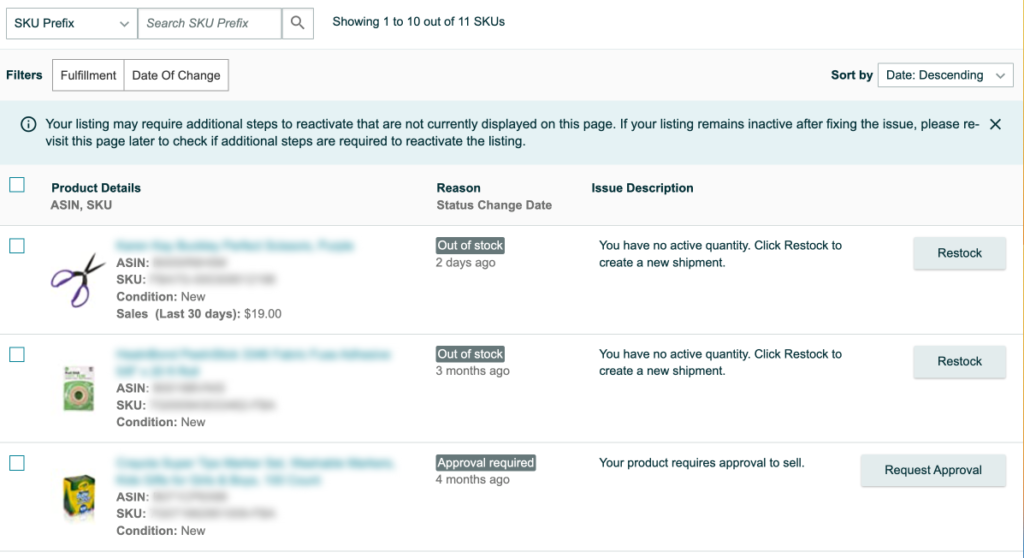
This directs your request specifically to Amazon’s catalog review team.
Step 4: Provide Required Documentation
In your support case, include:
- Both ASIN numbers involved
- A clear explanation that the products are identical
- Supporting proof such as:
- Brand website URL
- Packaging images showing matching UPC
- Manufacturer documentation
Amazon’s catalog team will review the information and merge the ASINs if the products are verified as identical.
Scenario 3: Wrong Parent-Child Variation Structure
If your product is attached to the wrong parent listing, you may need to:
- Submit a category-specific flat file.
- Remove the child from the incorrect parent.
- Rebuild the variation structure correctly.
Incorrect variation structure is one of the most common reasons listings get suppressed.
Common ASIN Mistakes That Cost Sellers Revenue
Many sellers try to “edit” identifiers instead of correcting the listing structure. This often causes:
- Suppressed listings
- Lost reviews
- Stranded FBA inventory
- Buy Box suppression
- Account health warnings
The most expensive mistake is rushing listing creation without validating UPCs and catalog alignment.
How to Prevent ASIN Problems During Product Launch?
Most ASIN-related issues do not happen randomly. They occur because critical setup steps were rushed or skipped during listing creation. A structured Amazon product launch process dramatically reduces the risk of duplicate ASINs, suppressed listings, and catalog conflicts.
Professional Amazon launch strategies typically include:
1. GTIN/UPC validation before submission
Every product identifier should be verified against GS1 records before listing creation. Incorrect or recycled UPCs are one of the most common causes of duplicate ASINs and catalog errors.
2. Proper category and browse node selection
Choosing the wrong primary category can restrict attributes, limit indexing, and trigger listing suppression. Category alignment must match the product’s intended placement and keyword strategy.
3. Clean parent-child variation architecture
Variations should only group products that differ by legitimate attributes such as size or color. Improper variation structure can lead to catalog conflicts, review separation, or suppression.
4. Backend attribute verification
Hidden fields such as brand name consistency, manufacturer details, item type keywords, and compliance attributes must be reviewed carefully to prevent mismatches in Amazon’s catalog system.
5. Duplicate ASIN monitoring before launch
A pre-launch catalog check ensures no identical listing already exists. This prevents accidental duplicate creation and protects review consolidation opportunities.
ASIN problems are rarely technical accidents — they are usually process failures during listing setup.
Frequently Asked Questions
Can I edit an ASIN after creating a listing?
No, you cannot edit or modify an ASIN after it has been created. Amazon permanently assigns an ASIN to a product in its catalog. If you made a mistake during listing creation, you must delete your offer and relist the product under the correct ASIN rather than attempting to change it.
Will deleting my listing delete the ASIN?
No, deleting your listing only removes your offer from that ASIN. The ASIN itself remains active in Amazon’s catalog because it represents a product record, not an individual seller’s listing. Other sellers can still sell on that ASIN if it matches their product.
Can I transfer reviews from one ASIN to another?
Amazon does not allow sellers to manually transfer reviews between ASINs. Reviews are permanently tied to a specific ASIN. However, if two duplicate ASINs are successfully merged by Amazon’s catalog team, the reviews may combine automatically under the surviving ASIN.
How long does an ASIN merge take?
An ASIN merge request typically takes between 24 and 72 hours once submitted through Seller Support. However, processing times can extend if Amazon requires additional documentation, proof of identical products, or verification from the brand owner before approving the merge.
Can changing the UPC change the ASIN?
No, changing a UPC will not change an existing ASIN. Amazon generates ASINs independently of UPC edits once the product is created in the catalog. Updating a product identifier may trigger listing errors, but it will not replace or modify the assigned ASIN.
Conclusion
Although Amazon does not allow sellers to modify an existing ASIN, listing errors can still be corrected using the proper process. The right solution depends on the issue, but it generally involves:
- Removing the incorrect offer from your inventory
- Relisting the product under the accurate ASIN
- Requesting an official merge for duplicate ASINs
- Rebuilding parent-child variation structures correctly
Attempting shortcuts—such as editing product identifiers or recreating listings without validation—can result in suppressed listings, stranded FBA inventory, lost reviews, and even account health risks.
If you’re launching a new product or cleaning up catalog inconsistencies, having a structured approach reduces errors, protects visibility, and safeguards revenue from the start. Instead of troubleshooting catalog problems after they impact sales, build your listings the right way the first time.
Connect with Amerify to develop a launch strategy that protects your brand, preserves your reviews, and positions your products for long-term growth on Amazon.